Manage the Groups
A Group contains a set of Users. It simplifies the administration of access rights on Folders. Indeed access rights on Folders are defined by Groups.
A good practice is to organize the Users Group by team or groups of interest.
Notice that a User may be associated to several User Groups.
Example
Let's consider 3 Users (Us1, Us2 and Us3), 2 Folders (Fld1 and Fld2), and 2 Users Group (UG1 and UG2) defined as below:
- UG1 contains Us1, Us2 and Us3. It is associated to Fld2
- UG2 contains Us2. It is associated to Fld1
Based on this assumption, Us2 is the unique user to have access to both Fdl1 and Fld2.
Access to Group Management page
Access to the Group Management page.

Creating a new Group
Click the icon Add a Group

And fill in the form
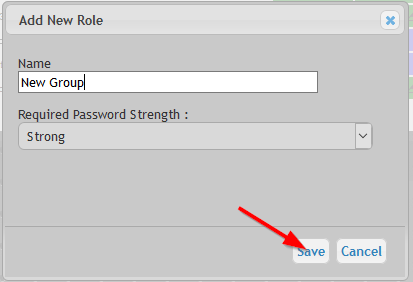
About the form:
- The label is the name of the Group.
- The
Required complexitycorresponds to the minimum password complexity level that a User password (that belong to this Group) needs to fulfill.
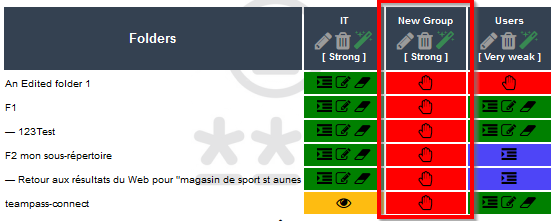
The new Group is now added to the list.
Edit a Group
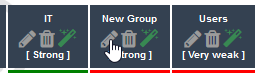
To edit, click the edit icon.
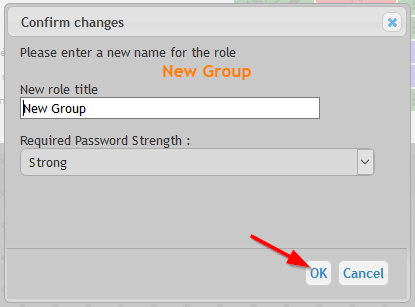
And edit it through the dialog box
Delete a Group
To delete, click the edit icon and Confirm.
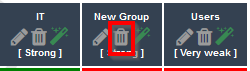
Users belonging to this Group will need to be associated to another Group.
Using the rights matrix
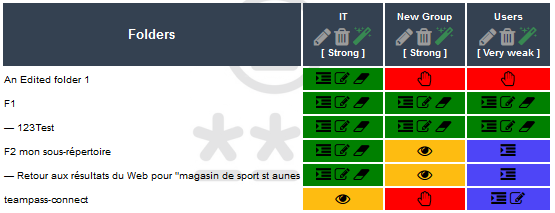
The rights matrix permits to allow or deny the access of Users in a Group to Folders.
To ease its understanding, the rights matrix uses colors and icons to indicate the specific rights set for a Group on a Folder.
Redcell indicates that the Group is not allowed to access the folderYellowcell indicates that the Group is allowed to View onlyGreencell indicates that the Group has access to the FolderBluecell indicates that the Group has access to the Folder but with specific restrictions
Small icons indicate the restrictions in place for a Group on a Folder.
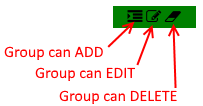
This matrix is very powerful and visible. As you can see in the previous screen-capture.
Allow access to all Items
This feature is disabled by default and is unsecure but it may be helpful.
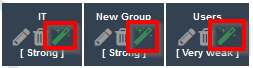
Its aim is to permit the Users of a Group to have the right to edit/modify all Items they have access to. It will bypass the settings set for each Item.
Only activate this for a Group with limited Users.
To activate this, click on the icon as shown in next screen-capture.
Who can manage Groups
Creation, modification and deletion can only be performed by an Administrator or a Manager.
Notes:
- The Manager will only see the Group that he is associated to.
- Deleting a User Group will not delete the associated Users.